
Nexus Bytes Windows Server Installation Instruction :
Login to your VPS Management Panel
- VPS "Settings" - "Settings"
- Enable VNC.
- Change Boot Order : 1)CD Drive 2)Hard Disk
- ISO Primary : Windows19.iso
- ISO secondary CDROM : virtio-win.is. Save
- Power OFF your VPS
- Start Your VPS
- Connect to your VPS via VNC
Follow on screen instruction. Please open support ticket to obtain your windows license if you don't have one.
PS: If you reinstall your system, you can activate it using phone activation (type "slui 4" in the powershell).
- Select Custom Install (Don't select upgrade).
- On The Next Step : Load Driver
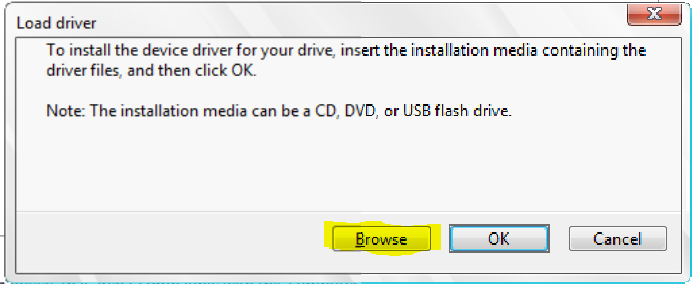
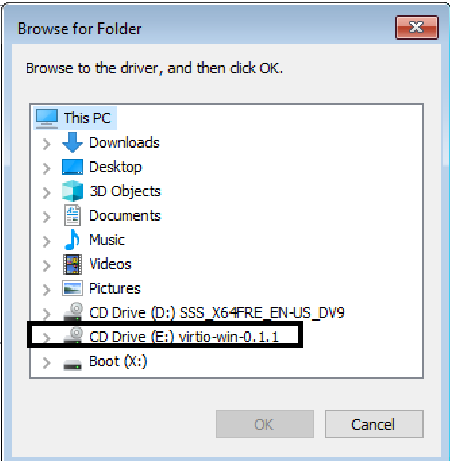
- Scroll Down till you see virtio-win.iso, you will need to install the following drivers :
NetKVM >2k19->AMD 64
viostor >2k19->AMD 64
Baloon >2k19->AMD 64
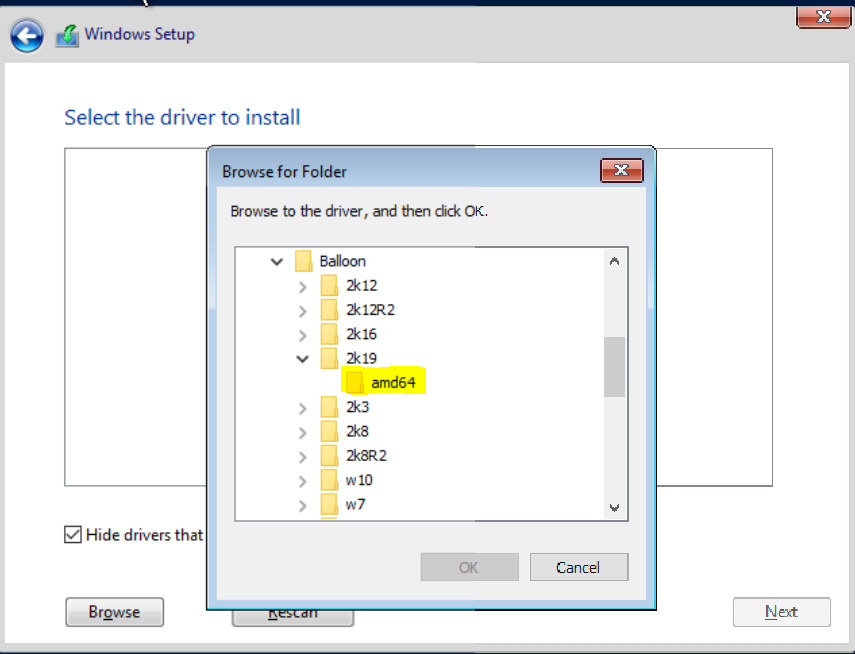
Follow on screen instructions and complete installation. Once your installation is successfully completed, you will need to change your vps boot order back to :1)Hard Disk 2)CD Drive and reboot your vps.
Reconnect to your VPS via VNC or you can setup RDP connection if needed :)
CTR+ALT+DEL Button on VNC
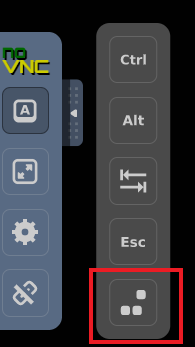
Disable Internet Explorer Enhanced Security Configuration in Windows Server 2019 :
https://medium.com/tensult/disable-internet-explorer-enhanced-security-configuration-in-windows-server-2019-a9cf5528be65